
What's New: Video Export, Multiple Projectors, and More
Map Club now exports MP4 videos, splits output across multiple blended projectors, masks with SVGs and shape groups, traces guides on your surface, and autoplays the timeline.
This update brings five features the Map Club community asked for in our Discord. They're all live now at map.club, and you can try each one in the editors below.
Export Video
Choose Export video from the file menu to record your output as an MP4, including the sound from video layers. Map Club plays the scene from the start of its timeline and saves the file when recording finishes. It's the easiest way to share a show or play it back on a media player.
Try it: click the folder icon, choose Export video, set the length to a few seconds, and click Record.
Learn more about exporting video.
Multiple Projectors
Split one canvas across up to four projectors, side by side or stacked. Map Club blends the overlap automatically, and each projector opens in its own window.
Try it: hover the monitor icon, set Projectors to 2, and watch the dashed outlines appear in the output panel.
Learn more about multiple projectors, or follow the full guide on blending multiple projectors.
Masks With Several Shapes
Select a layer and several masks, then choose Set as Mask, and the layer shows through every shape at once. That makes masking all the windows on a building a single step.
Try it: in the layers panel, click Surface 1, Shift-click both masks, then right-click and choose Set as Mask.
Learn more about masking with several shapes.
Import SVG as a Mask
Draw complex outlines in Illustrator, Figma, or Inkscape and import them from the file menu. Every shape becomes an editable mask, fitted to the selected layer.
Try it: select Surface 1, click the folder icon, and choose Import SVG as mask. No SVG handy? Download this sample of house windows.
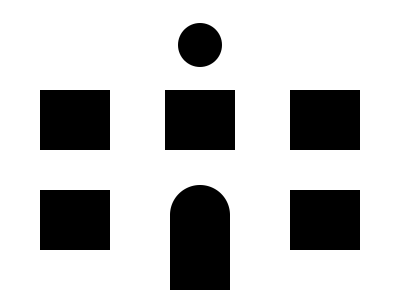
Learn more about importing SVG masks.
Trace Guides
Click the pen button in the output panel and draw guide lines while the projection is lit on your surface. Right-click a traced shape to turn it into a surface or a mask.
Try it: click the pen in the output panel, click four corners, then click the first point again to close the shape. Right-click it and choose Make surface.
Learn more about tracing guides.
Timeline Autoplay
Turn on Autoplay in Timeline Settings and your show starts as soon as the project or output window opens, ready for installations that run on their own.
Try it: press T to open the timeline, click Create Timeline, then open Timeline Settings and turn on Autoplay. It takes effect the next time the project opens.
Have an idea for what's next? Send it with the feedback button in the app or share it in our Discord.